Configuration and Features of the Xero™ Online Interface

The Xero Interface allows you to automatically synchronize information between JobBOSS2 and the selected Xero Company for the purpose of creating AR and AP invoices in Xero.


Prerequisite:

A Xero Custom API Connection is required to use this integration. The Custom API Connection can be purchased from Xero at https://connect.xero.com/custom. Once the Custom API Connection has been purchased the Custom API Connection can be configured here https://developer.xero.com/app/manage.  This configuration allows the user to create the custom app, Client ID and Client Secret required to connect JobBOSS2 to Xero.

During the Custom API Connection configuration:

  • When setting up your connection, select all 'Scopes' from the authorization configuration.

  • Use the Redirect URL https://manage.integrations.ecimanufacturing.com/connect/oauth the "Company or Application URL."

  • Once you have obtained your custom connection Client ID and Client Secret credentials, please enter them when prompted during Connect to Xero process outlined later in this help document.


This topic provides information on how to configure the various components required to use the Xero Interface and assumes the user has an active Xero account and credentials.


Before using the interface, verify the following settings in each program to ensure information will synchronize correctly. Also, before using the interface, please read the page that outlines which fields are synced by JobBOSS2 to Xero.

Configuration

Settings and Preferences

  1. In the Navigation Sidebar, click the Settings button.Settings_Button
  2. Open the System drop down menu.
  3. Select Company Maintenance.
  4. Click Edit and then click Defaults.
  5. Go to the Interfaces Section.
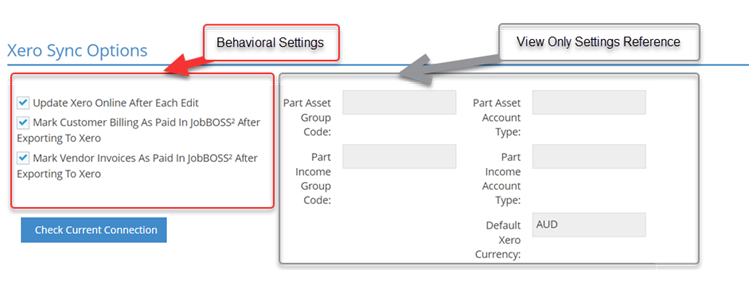
  6. Select the Xero Interface radio button. The Xero Sync Options section appears:
    • Selecting this option also limits GL Codes in JobBOSS2 to 12 characters. Spaces and special characters (@, #, %, *, etc.) must be included in the count when considering character limits for fields in both JobBOSS2 and Xero.
  7. Use the check boxes provided to determine the following interface behaviors:
    • Update Xero Online After Each Edit: This option determines the default setting on existing records that interface with your Xero company.
      • When this option is selected, the Save to Xero? check box located on existing records that sync with Xero is automatically selected.
      • When this option is left unchecked, the Save to Xero? check box on existing records that sync with Xero is automatically left blank.
      • The ‘Save to Xero?’ option is always selected by default when creating new records that sync with your Xero company regardless of this maintenance setting.
      • If the 'Save to Xero?' option is selected, any changes you make to a record will automatically sync and update within your Xero company.
    • Mark Customer Billing As Paid In JobBOSS2 After Exporting To Xero: When selected, the interface automatically marks exported AR Invoices as 'Paid' in JobBOSS2.
    • Mark Vendor Invoices As Paid In JobBOSS2 After Exporting To Xero :When selected, the interface automatically marks exported AP Invoices as 'Paid' in JobBOSS2.
      • If either of these options is left blank, the respective list of unpaid invoices will continuously grow since they will never be paid within JobBOSS2.
    • Check Current Connection button: This option validates the connection between JobBOSS2 and the Xero company.
    • Click Cancel to return to Company Maintenance.
  1. Settings are not saved until you completely exit Company Maintenance.

Setting References

The values listed in this portion of the Xero Sync section are displayed for reference purposes only and will likely be blank the first time you select the Xero Online Sync Interface. These values are entered / edited when you connect to your Xero company.

ClosedEdit Currency Codes
  1. Open the Base Tables dropdown menu under the Settings option in the Navigation Sidebar.
  2. Select Currency Codes.
  3. Select the appropriate Currency Code from the grid and then click the Edit button.
  4. Open the Xero Currency Code dropdown menu in the General section.
  5. Select the Xero Currency Code that corresponds with the Currency Code you are editing in JobBOSS2.
  6. Click Save and repeat these steps for all Currency Codes.

Note: All currency codes used in JobBOSS2for customers and vendors must also exist in Xero for proper syncing.

ClosedEdit Tax Codes
  1. Open the Base Tables dropdown menu under the Settings option in the Navigation Sidebar.
  2. Select Tax Codes.
  3. Select a Tax Code and then click the Edit button.
  4. If applicable, click the Active check box.
  5. Select the applicable Xero Tax Codefrom the dropdown menu.
  6. Click the Save button.
  7. Edit the remaining Tax Codes and assign the appropriate Xero Tax Code.
ClosedEdit Group Codes
  1. Open the Base Tables dropdown menu under the Settings option in the Navigation Sidebar.
  2. Select GL Group Codes.
  3. Select a GL Group Code and click the Edit button.
  4. If applicable, click the Active check box.
  5. Select the applicable Xero Account Type from the dropdown menu.
  6. Click the Save button.
  7. Edit remaining Group Codes and assign the appropriate Xero Account Types.

Note: All parts are synced as "non-inventory" items. JobBOSS2 does not support the "Track Inventory Item" functionality for parts in Xero. A part in Xero can have this functionality enabled but JobBOSS2 does not sync inventory counts. User of Xero account type of "Inventory Asset Account" is not supported for the Default Part Asset Xero account type.

ClosedParts

Both manufactured and purchased parts should be present in Xero for billing and inventory valuation purposes. All parts are synced as "non-inventory" items. JobBOSS2 does not support the "Track Inventory Item" functionality for parts in Xero. A part in Xero can have this functionality enabled but JobBOSS2 does not sync inventory counts.

The items listed here represent the minimum settings used for the Xero Sync to function properly and should not be considered as sufficient information for costing purposes in JobBOSS2 itself.

  1. Go to Data Entry > Inventory > Inventory Items.
    • For purposes of this review, all parts can be edited within Inventory Items, including manufactured parts (which would typically be edited under Estimating.)
  2. Select a part that is / will be included in Xero and click Edit.
  3. In the General Section, verify the following:
    • Part Number
      • This needs to match the Item Name/Number field in Xero.
    • Description
      • This information is used to populate the Description on Purchase Transactions field of the part created in Xero.
    • Product Code (OPTIONAL)
      • The assigned Product Code provides the Income Account on any new part added to Xero through the interface.
        • The interface looks to the Product Code for this information regardless of how the Customer Billing GL Coding Driven By setting is configured in Company Maintenance.
      • If Product Code is not present, the interface will assign the generic JB2PInc in Xero instead.
    • Note: Inventory GL Code - The Inventory GL Code is not synced when using Xero.
  4. In the Purchasing Section, verify the following:
    • Purchasing GL Code (OPTIONAL)
      • If Purchasing GL Code is not present, the interface creates and assigns the generic JB2PAsst in Xero instead.
  5. Repeat for as many parts as necessary.
ClosedSync with Zero
  1. Go to Settings > System > Company Maintenance.
  2. Select the company and then click Edit
  3. Click Default and then go to Xero Sync Options section.
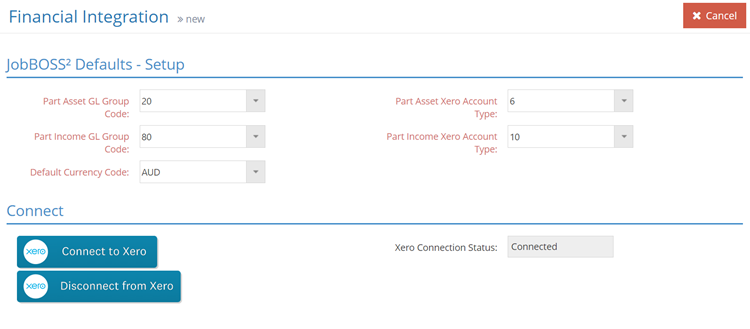
  4. Click the Check Current Connection button. The Financial Integration screen opens:
  5. Select the Group Code to associate with the generic JobBOSS2 accounts the interface will create in the Xero chart of accounts. The related Xero Account Type field automatically populates so long as the Group Codes have been edited. If not, select the Xero Account Types as needed.

    Note: All parts are synced as "non-inventory" items. JobBOSS2 does not support the "Track Inventory Item" functionality for parts in Xero. A part in Xero can have this functionality enabled but JobBOSS2 does not sync inventory counts. User of Xero account type of "Inventory Asset Account" is not supported for the Default Part Asset Xero account type.

  6. To sync to Xero, click the Connect to Xero button to establish a connection to Xero Online. A screen asking for permission to connect is displayed. A Setup Xero Connection screen is displayed prompting you to enter your client id and client secret. Click Continue to connect and be returned to company maintenance. If connected and there are no changes, click Cancel button to exit from this screen.
  7. Click the Disconnect from Xero to disable the connection to Xero Online interface. After clicking, you are returned to Company Maintenance.

    Note:You cannot use this option to detach from one Xero company and re-establish connection with another Xero company. There may only be one Xero company per JobBOSS2 Company.

Generic JobBOSS2 Accounts Created in Xero

The first time you exit a record that syncs with Xero (such as a GL Code) after setting the Interface option to Xero Online, the system displays the Xero Online page.
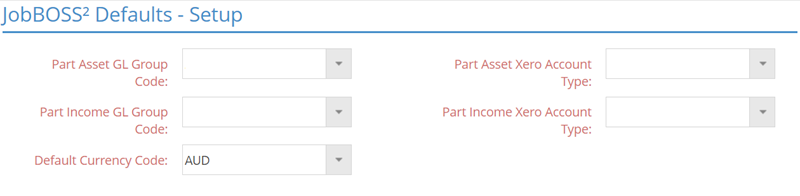
This information is required to allow the interface to send values to your Xero company correctly with regards to the following generic accounts created in the Xero Chart of Accounts and in JobBOSS2 (but not active):

  • JB2PAsst
  • JB2PInc
ClosedFeatures
Save To Xero?

Once Xero Online is selected as the interface in Company Maintenance, a Save To Xero? check box appears throughout the system on various records. When checked, the Save To Xero? feature automatically syncs the record to Xero anytime a change is saved in JobBOSS2.

  • The default setting is found in Company Maintenance Defaults under the Xero Sync Options.
    • The default setting is called Update Xero Online After Each Edit.