Syncing Vendors and Customers with Commerce Suite
Use the following steps to synchronize your vendors and customers between JobBOSS2 and Commerce Suite by using Integration Utilities. Commerce Suite must already be connected in Company Maintenance. Before syncing, users must be granted the appropriate security permissions.
Note: If Commerce Suite is not connected, Process displays an error and asks you to connect from Company Maintenance → Defaults. See Connecting JobBOSS2 to Commerce Suite.
Prerequisites: User Security Setup
Access to the Integration Utilities requires security settings for the user. To enable security permissions:
-
In JobBOSS2, go to Settings > System > User Maintenance.
-
Select the user and then click the Edit button.
-
In the Company List section heading, click the Security button.
-
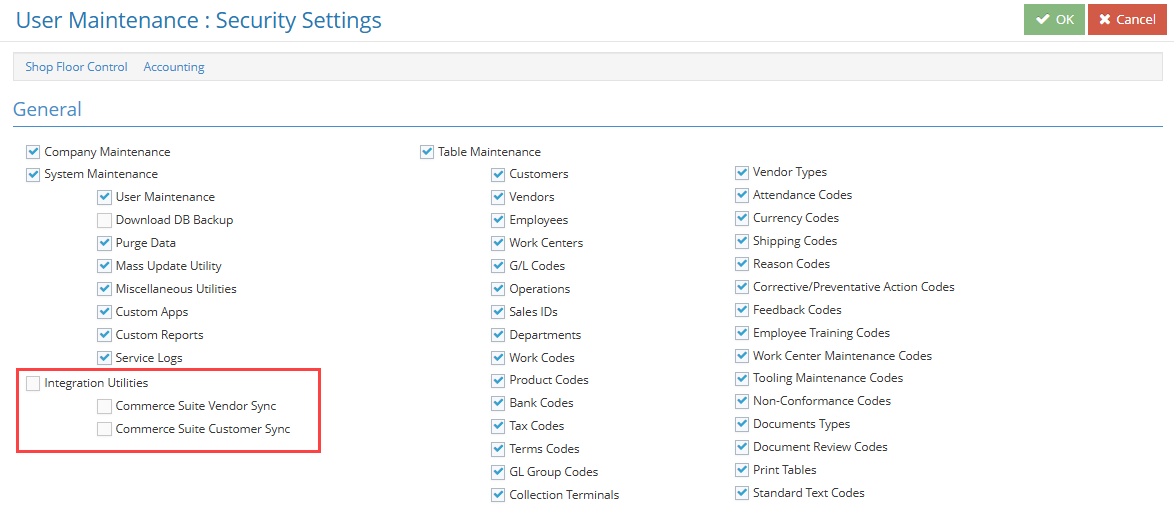
Under the General section, locate Integration Utilities:
-
Enable the following check boxes as needed:
-
Integration Utilities
-
Commerce Suite Vendor Sync
-
Commerce Suite Customer Sync
-
-
Click OK to save the user record.
Accessing Integration Utilities to Sync Vendors & Customers
To access the Integration Utilities:
-
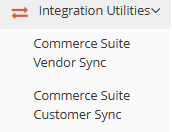
Go to Settings > System > Integration Utilities:
-
Select one of the following:
-
Commerce Suite Vendor Sync
-
Commerce Suite Customer Sync
-
Syncing Vendors to Commerce Suite
-
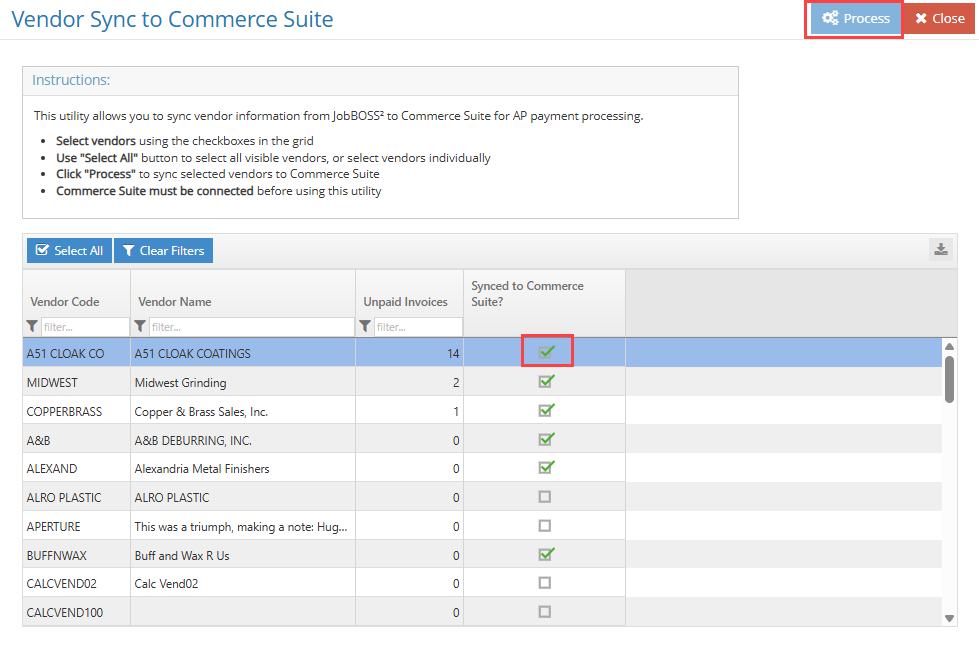
Select Commerce Suite Vendor Sync. A grid of active vendors opens, sorted with the highest unpaid invoice counts first.
-
Review and filter vendors. The grid includes Vendor Code, Vendor Name, Unpaid Invoices, and Synced to Commerce Suite?
-
Use filters to locate specific vendors.
-
Use the Clear Filters button to reset the grid.
-
Click rows to select vendors. Use Select All to select the visible (filtered) rows.
-
Click the Process button.
Review the sync results:
-
Successful vendor syncs
-
Errors that occurred
-
Skipped vendors (already synced, or matched to an existing Commerce Suite vendor by external ID and mapped without creating a duplicate)
-
A green check mark in Synced to Commerce Suite? indicates the vendor is linked to Commerce Suite.
Sync Status Indicators
-
Green check mark: Record successfully synced (or mapped) to Commerce Suite.
-
No check mark: Record has not yet been synced.
Reprocessing a vendor that is already synced skips that vendor. To update a synced vendor, open the vendor record and save it while Commerce Suite is connected; the vendor is updated in Commerce Suite on save.
Syncing Customers to Commerce Suite
-
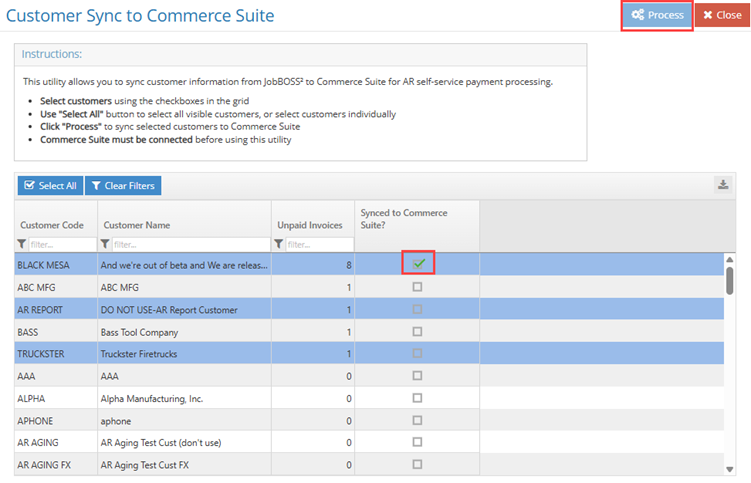
Select Commerce Suite Customer Sync. A grid of active customers opens, sorted with the highest unpaid invoice counts first.
-
Review and filter customers. The grid includes Customer Code, Customer Name, Unpaid Invoices, and Synced to Commerce Suite?
-
Use filters to locate specific customers.
-
Use the Clear Filters button to reset the grid.
-
Click rows to select customers. Use Select All to select the visible (filtered) rows.
-
Click the Process button.
-
Review the sync results:
-
Successful customer syncs
-
Errors that occurred
-
Skipped customers (already synced, or matched to an existing Commerce Suite customer and mapped without creating a duplicate)
-
A green check mark in Synced to Commerce Suite? indicates the customer is linked to Commerce Suite.
-
Reprocessing a customer that is already synced skips that customer. To update a synced customer, open the customer record and save it while Commerce Suite is connected; the customer is updated in Commerce Suite on save.
Fee recovery and self-service account settings in Company Maintenance Defaults apply to newly synced customers. See Connecting JobBOSS2 to Commerce Suite.
After vendors and customers are synced
Vendors and customers must be synced before related transactions can go to Commerce Suite:
-
Billing: For a synced customer, use Create invoice in Commerce Suite? or Update invoice in Commerce Suite? Commerce Suite Status and a payment link can display. The invoice PDF can be attached when the invoice syncs.
-
Vendor Invoices: For a synced vendor, create or update a bill in Commerce Suite, then initiate, cancel, or retry payments. A vendor invoice with Commerce Suite payments cannot be deleted.
Verifying/Starting JobBOSS2 Services for Commerce Suite
For Commerce Suite to work correctly, JobBOSS2 Services must be running. If the services are stopped, Commerce Suite functionality may not work as expected. When services are running and Commerce Suite is connected, payment polling can create cash receipts from customer payments received in Commerce Suite and checks from completed vendor payments.
Use these steps if:
-
Commerce Suite features are not working, or
-
Cash receipts or checks from Commerce Suite payments are not appearing, or
-
You want to confirm JobBOSS2 Services are running.
To check or start JobBOSS2 Services:
-
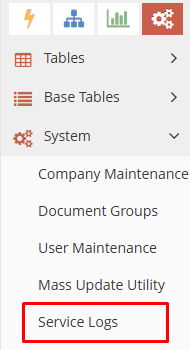
In JobBOSS2, navigate to: Settings > System > Service Logs:
-
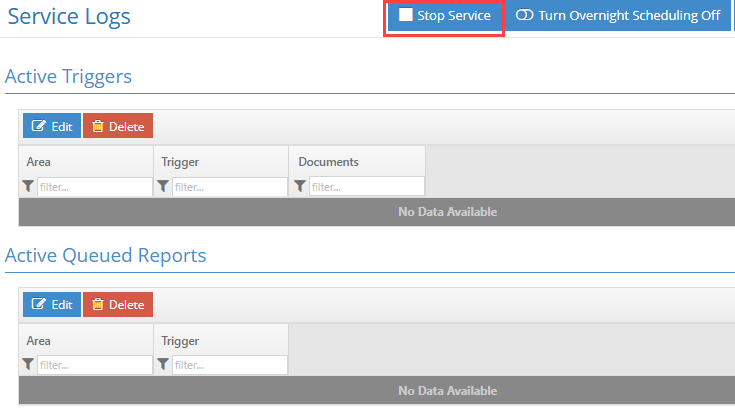
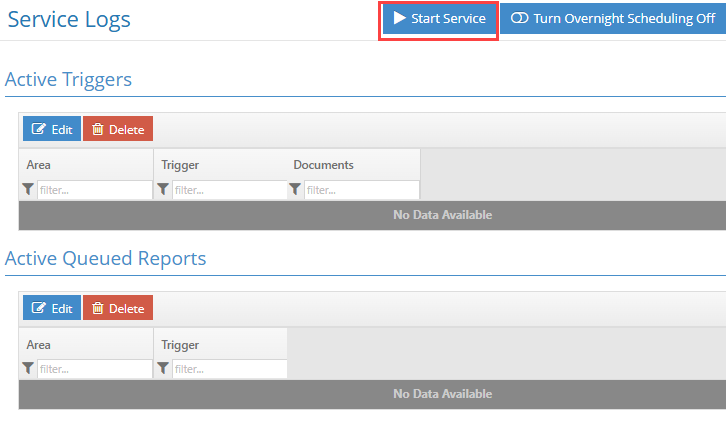
Look at the button in the top middle of the screen:
-
If you see Stop Service, then the services are currently running:
-
If you see Start Service, then the services are currently not running:
-
-
If services are not running, click Start Service.
-
After starting the service, click Close to leave the screen.