Using the Cut List Calculator for Materials
The Cut List Calculator is an alternate way to create the BOM in your estimate, since the Materials tab does not allow you to add the same part number twice to a BOM. This is a problem if you need to use the same material but in varying dimensions. The Cut List Calculator allows you to use that same part number multiple times, with different descriptions. Example: Using the same tubing bar stock to build an entire bicycle frame, but you need four different cut lengths for each frame section.
 Adding to the Material Cut List Detail Page
Quantity
This field is read with the Unit field - how MUCH of this material, in the part number's unit of measure, is required to build the master part.
-
For example, you need 9 inch cuts for the handles, or 12 inch cuts for the spokes.
Unit
Unit of Measure - defaults from the part master and cannot be edited here.
Total Qty
This field is calculated by the system:
-
Total Qty = Times Used * Quantity
Total Weight
This field defaults from the part weight field in inventory for this part number. It is primarily used with coil calculator. Calculating total amount of material required.
Example:
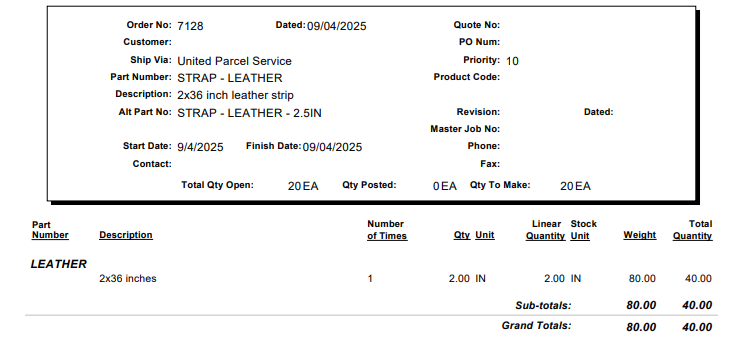
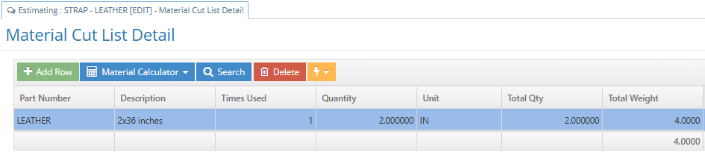
An example of cutting 2-inch straps from a 36x36-inch sheet of leather by starting on the estimate for Strap, then opening the Material Cut List Detail page:
-
Put Leather in the Part Number field, put 2x36 inches in the Description field, because that will be the final dimension of the piece.
-
Under Times Used, enter 1 since only one strap is needed to complete the estimate.
-
The Quantity is set to 2 because the width needs to be cut to two inches.
After completing the entries and click OK on the Cut List screen, JobBOSS2 returns to the Materials section of the Estimation screen, sums the quantities for each part number, and displays each part number once in the Materials screen, with the total quantity required.